Getting Started
You can quickly get started with pyflow with a trivial example outlined below. Before you run it, make sure to setup your environment by following instructions in Installation chapter.
See also
For more details about ecFlow, please check ecFlow documentation.
Write Suite
Copy the following code into a new file called hello_pyflow.py:
Start Server
Before you can deploy suite, make sure to start a local ecFlow server, via command line:
ecflow_start.sh
Make a note of your ecFlow server Port Number, which will be shown by the command above. By default, this value is dynamic and will be set to 1500 + UID, where UID is your current user ID.
Deploy Suite
To deploy the suite, simply run the Python script from the command line:
python3 hello_pyflow.py
Run Suite
You can run the suite from the ecFlowUI application. Either start it via system menu icon or via command line:
ecflow_ui
If running for the first time, turn on the Administrator menu mode in Tools > Preferences:
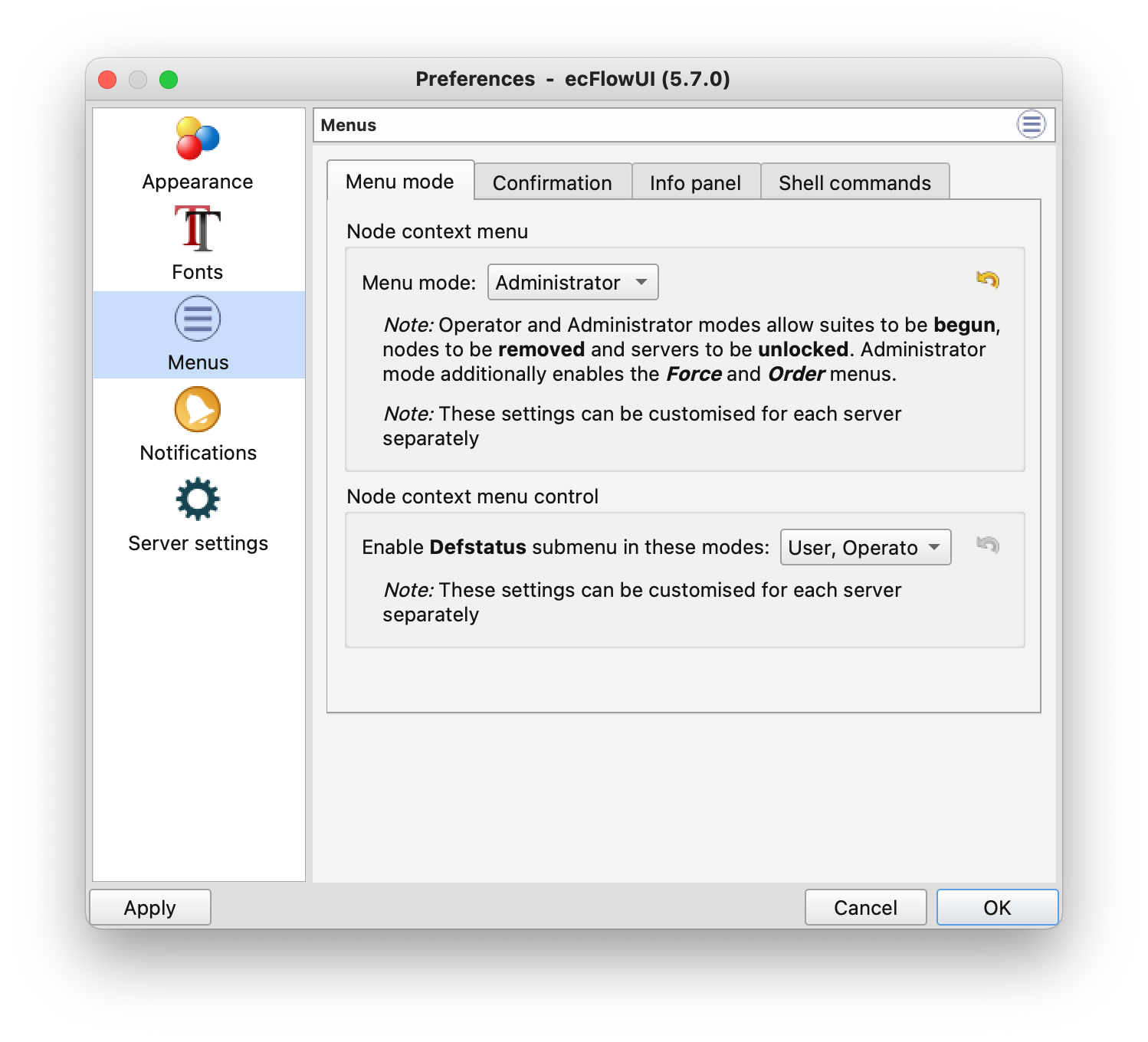
ecFlowUI Administrator Menu Mode
Then, add the local server to the view via Servers > Manage servers > Add server dialog, taking care to substitute the Port Number value, which was shown when you started the ecFlow server:
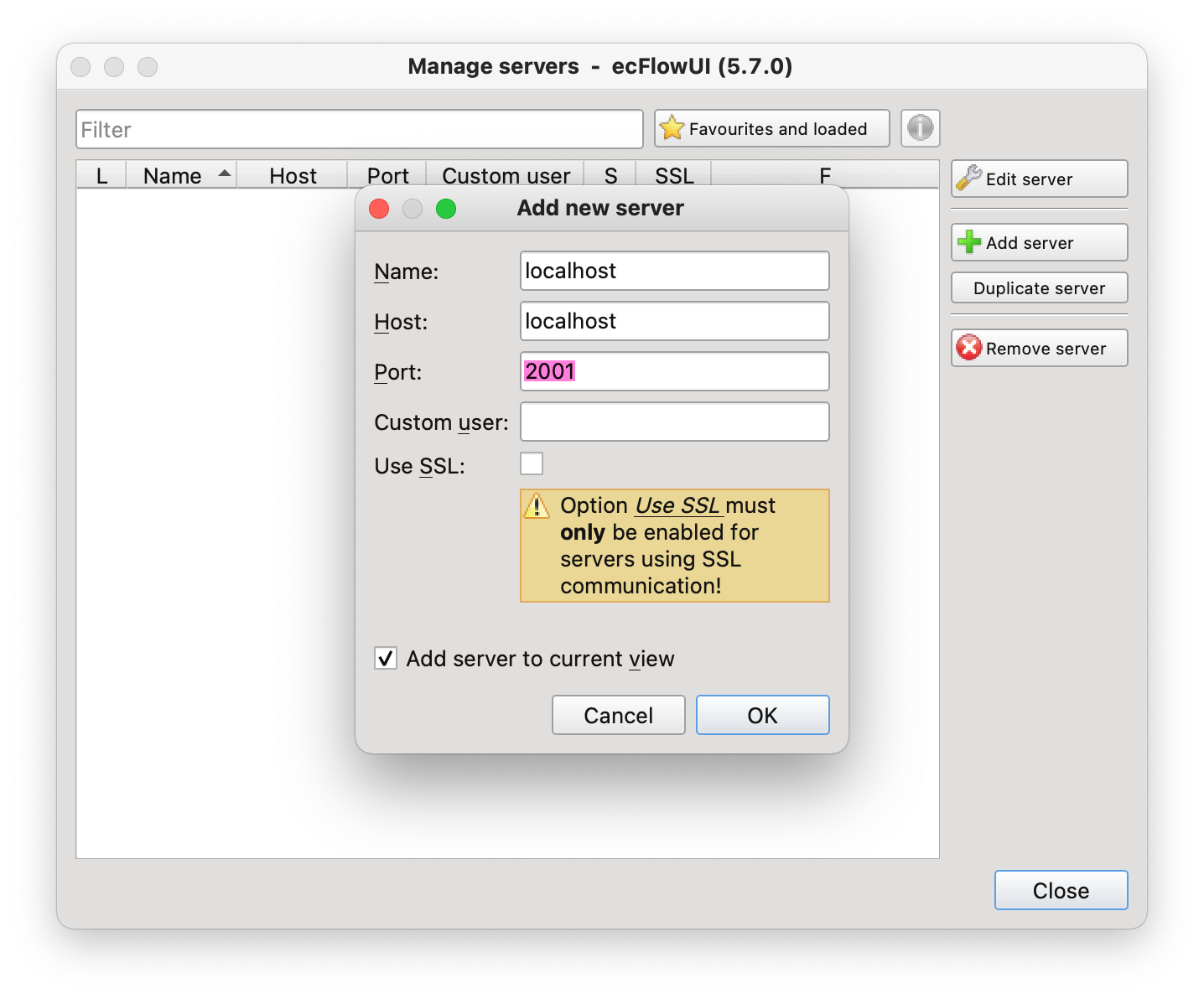
ecFlowUI Add Server Dialog
To queue the deployed suite, right click on it in the tree and choose Begin from the context menu:
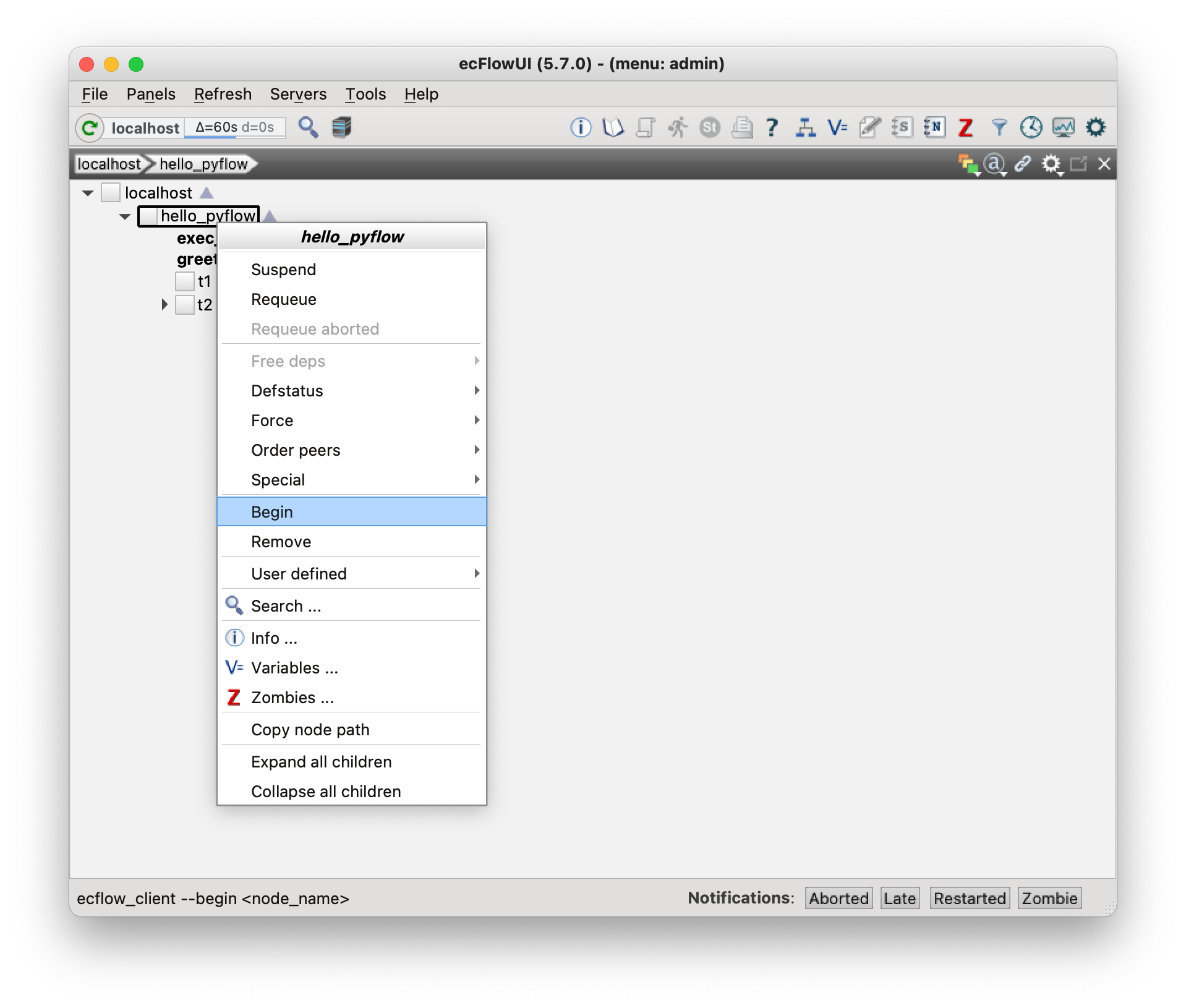
ecFlowUI Begin Suite
Finally, to resume the suite, right click on it and choose Resume from the context menu:
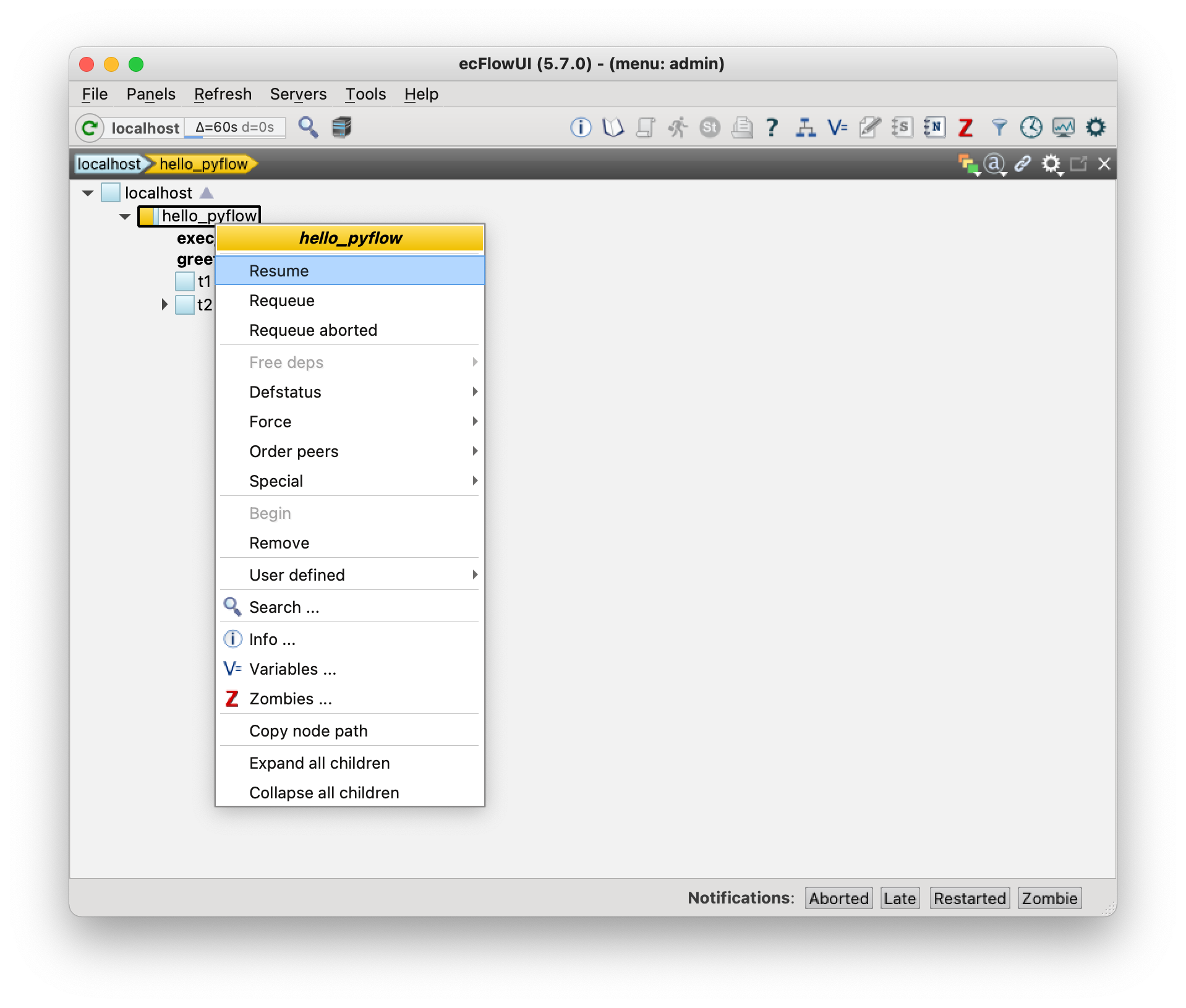
ecFlowUI Resume Suite
The suite should now run and you should see the nodes change colour depending on their state and label get updated. Note that you can refresh the server view at any time by clicking on appropriate toolbar button or via F5 keyboard shortcut.
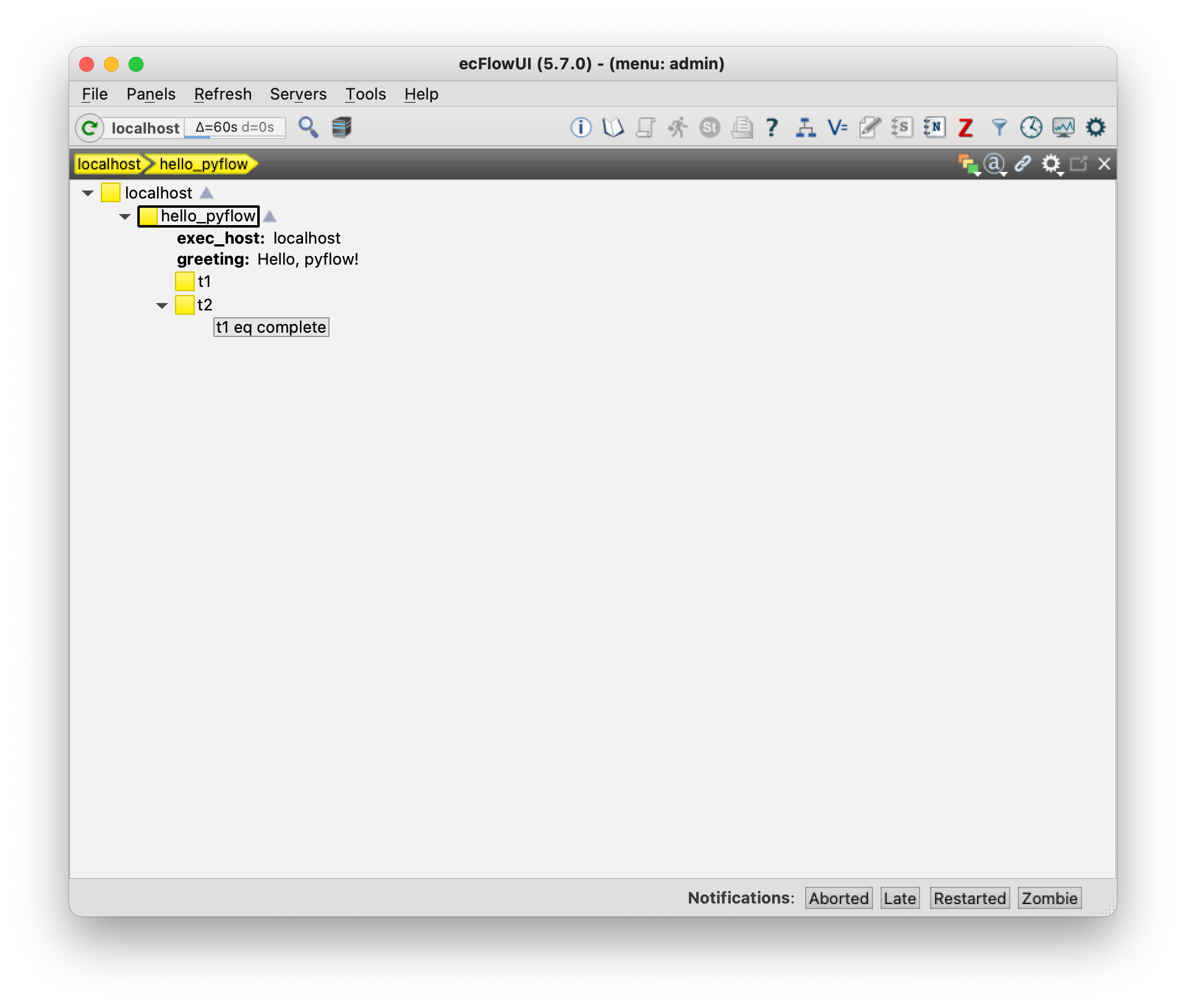
ecFlowUI Complete Suite
Stop Server
After you finish, make sure to stop the local ecFlow server:
ecflow_stop.sh